
A 0.1-second mobile speed gain lifted retail conversions by 8.4% and average order value by 9.2%. That is how thin the margin is between a store that converts and one that leaks.
Now look at how most $100K-$500K stores actually change their pages. A marketer wants a new banner. The request goes into a developer queue, sits for a week, and ships after the sale it was built for.
Or the marketer gets impatient, pastes a snippet into the theme, and something on the product page quietly breaks.
Both outcomes come from the same place. Your theme was never structured for the people who use it every day. This guide shows how to fix that, so your team edits fast, and your store stays intact.
Key Action Points:
- Audit every page type and list which changes still need a developer.
- Rebuild repeatable page layouts as JSON templates with reusable sections.
- Move product and campaign content into metafields and metaobjects.
- Connect a GitHub branch and publish only from a reviewed main branch.
- Cap your app stack and remove leftover app code from the theme.
- Write a one-page edit policy that names who can change what.

What is Shopify Theme Architecture?
Theme architecture is a decision about who owns your storefront. Every Shopify theme includes templates, sections, blocks, and settings. How those pieces are arranged decides whether your marketing team can launch a campaign page before the sale season or has to wait until the next sprint.
Templates, sections, and blocks in plain terms
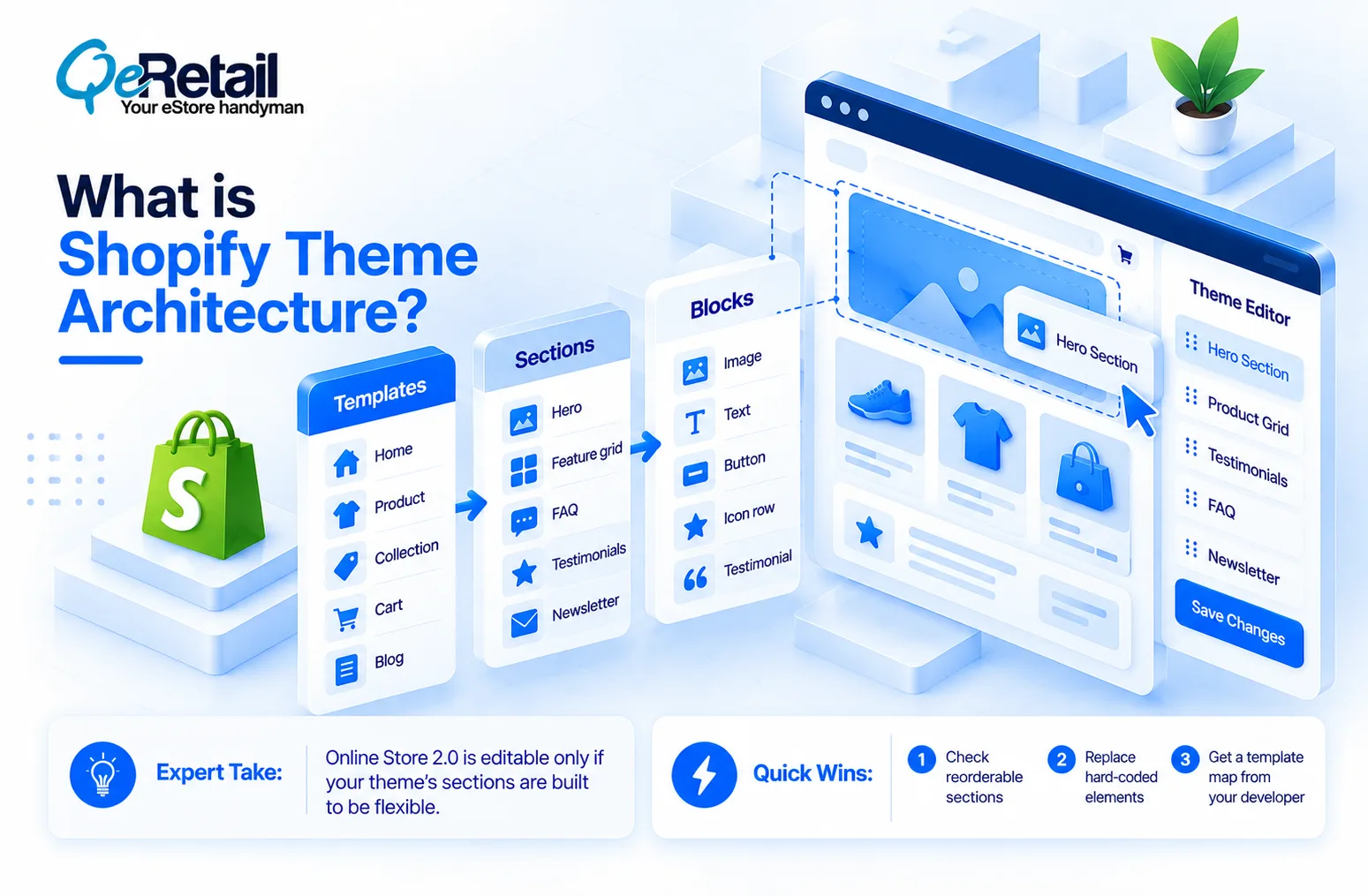
A template is the page type, such as product, collection, cart, or blog. A section is a full-width band on that page, like a hero, a feature grid, or an FAQ. A block is a movable piece inside a section, like one testimonial or one icon row.
In Online Store 2.0, JSON templates store a list of sections and their settings, so merchants can add, remove, and reorder them in the theme editor without touching code.
Each template supports up to 25 sections, and each section up to 50 blocks. That ceiling is high enough that most stores never come close.
Expert Take:
Migrating to Online Store 2.0 does not make your store editable. It makes it editable if the theme’s sections were built to be flexible. Many migrated stores still ship hard-coded product pages, so the team sees the drag-and-drop editor but can’t actually move anything.
Quick Wins:
- Open each key template in the theme editor and count how many sections you can actually reorder.
- List every element that is hard-coded in Liquid and should be a section.
- Ask your developer for a one-page map of templates, sections, and blocks.
Why Do Most Shopify Stores Still Need a Developer for Every Change?
Here is the reason behind this. Most stores were built once, for launch, and never restructured for daily use.

A theme gets customized. A few apps get installed. Someone edits the code directly to fix one issue. Two years later, nobody on the team is sure what is safe to touch. So they touch nothing, and every change becomes a ticket.
Hard-Coded Pages and App Sprawl
Each Shopify app can add 50-500 KB of JavaScript and CSS to every page load, and the average store runs 15 to 25 apps. Many inject code into the theme on install and don’t fully remove it when uninstalled. So the theme fills up with fragments nobody owns.
Your team feels this as fear. Your customer feels it as a slow page.
Expert Take:
Uninstalling an app is not the same as removing it. Check the theme code for leftover snippets and script tags after every uninstall. And measure before and after, because the app you removed for speed may not have been the slow one.
Quick Wins:
- Export your app list and mark each one as revenue-critical, useful, or removable.
- Search the theme for script tags from apps you no longer use.
- Run a mobile speed test before and after each removal and log the difference.
Direct Edits on the Live Theme
The second cause is editing the published theme directly. One mistyped tag and every visitor sees it. No preview, no rollback plan, no record of who changed what.
But is a slower process the answer? No. A safer one is. (If your team is afraid to edit the live theme, you don’t have an editing problem. You have a missing staging layer.)
The 4-Layer Architecture That Makes Editing Safe
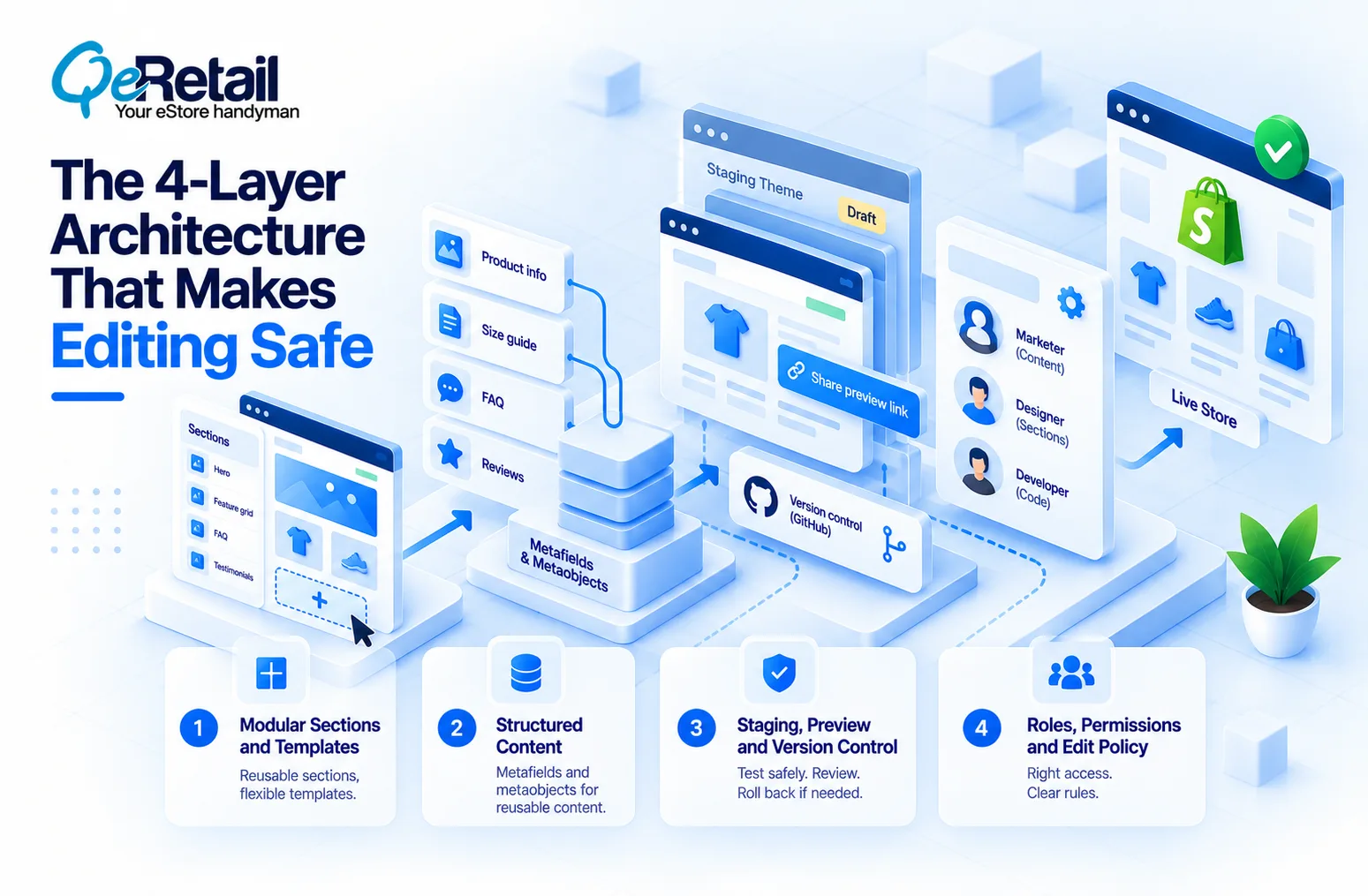
Think of it as four layers, each with one job. When each layer has one owner and one set of rules, your team can move quickly without breaking anything else.
Layer 1: Modular Sections and Templates
Build every repeatable page element as a section with clear settings. A hero with a headline, image, and button. A comparison table. A trust-badge row. Then give each template a default section order your team can rearrange.
For Shopify stores at this stage, add alternate templates for high-change pages, such as product. campaign, or collection. sale. Your marketer picks the template from a dropdown. No code involved.
Expert Take:
More sections do not mean more flexibility. Forty options with no guidance produce inconsistent pages and broken brand rules. Ship fewer, better-constrained sections, and hide settings your team should never touch.
Quick Wins:
- Build 8 to 12 core sections that cover 80% of your page needs.
- Add dropdown settings with fixed options instead of open text or raw CSS fields.
- Create alternate templates for campaigns, sales, and launches.
Layer 2: Structured Content in Metafields and Metaobjects
Content that lives inside theme code needs a developer to change. Content that lives in structured data doesn’t. Shopify’s dynamic sources let merchants connect theme settings to products, collections, pages, metafields, and metaobjects through the theme editor, again with no code.
Move size guides, ingredient lists, shipping notes, FAQ blocks, and badge text into metafields. Use metaobjects for repeating content like reviews, team bios, or comparison rows. Then update the entry once, and every page that references it updates too.
Expert Take:
Metafields are not a developer feature. They’re a content-ops feature that happens to need a developer once, at setup. If your team can’t edit the field in Shopify admin after launch, the setup is unfinished.
Quick Wins:
- List every piece of copy that repeats across 10 or more products.
- Create metafield definitions for each and give them plain-language names.
- Connect them to sections through dynamic sources, then train one team member to own them.
Layer 3: Staging, Preview, and Version Control
Never edit what customers are looking at. Duplicate the theme, edit the copy, and preview it first. Shopify lets you share preview links for unpublished themes: visitor previews expire after 2 days, and merchant previews, which require login, expire after 30 days. When you publish, the old theme stays in your drafts, so a rollback is one click.
For teams with a developer partner, the GitHub integration for themes syncs a branch with your theme. Edits made in the theme editor commit back to the branch, and saves within about 10 seconds are batched into one commit. Shopify’s version control guidance suggests keeping main connected for production and using separate branches for temporary campaigns.
Expert Take:
Version control does not slow your marketers down. Unreviewed publishing does. The fix is one rule: nothing goes live from a working copy. Everything goes through preview, then a named person hits publish.
Quick Wins:
- Duplicate the live theme before every non-trivial edit and name it with the date and owner.
- Send preview links to a second person before publishing.
- Keep the last two published themes as rollback options, and check your plan’s theme cap (20 on most plans, 100 on Shopify Plus).
Layer 4: Roles, Permissions, and an Edit Policy
Not everyone needs theme access. A marketer needs content and preview. A designer needs section settings. Only your developer partner should touch Liquid, CSS, and theme code.
Write it down. One page: who can edit content, who can add sections, who can publish, who can touch code. Date it and review it every quarter.
Expert Take:
A permissions policy nobody reads is decoration. Attach it to your publish checklist so it gets used on every release, not filed after onboarding.
Quick Wins:
- Assign staff accounts only the permissions their role needs.
- Define “content edit,” “layout edit,” and “code edit” as three separate tiers.
- Add a pre-publish checklist covering mobile preview, links, and page speed.

A 30-Day Implementation Roadmap
Four weeks is enough to change how your team works. It does not require a rebuild.
- Week 1: Audit. Map templates, sections, apps, and permissions. List every change that currently needs a developer and how long each one takes.
- Week 2: Restructure. Convert your top three pages to flexible JSON templates. Build the first six sections. Move the five most-edited pieces of copy into metafields.
- Week 3: Protect. Set up staging and preview habits. Connect a GitHub branch if you have a developer partner. Clean out dead app code and write the edit policy.
- Week 4: Train and test. Have your team ship one campaign page without developer help. Time it. Fix whatever slowed them down.
So what does success look like?
A campaign page that goes live before the moment passes, and a team that no longer holds its breath at “publish.”
If you are still mapping your funnel, our TOFU, MOFU, and BOFU guide for Shopify shows which pages deserve this treatment first.
Final Thoughts
Most stores treat editing risk as a people problem. They restrict access, add approval steps, and slow everything down. However, the risk sits in the architecture, not in your team.
If your marketers are still waiting on a developer for a banner change, you didn’t build a flexible store; you just installed a new editor. And if they can push straight to the live theme, you didn’t give your team control; you removed the safety net.
The right structure gives you both. Sections your team can rearrange. Content that updates from one place. A staging layer that catches mistakes before customers do. That’s how a store compounds speed over time, one safe change after another.
Need a partner who builds themes your team can actually run? Book a free consultation, and we will audit your theme structure and show you exactly which changes still need a developer.
Frequently Asked Questions
Can You Edit A Shopify Store Without A Developer?
Is It Safe To Edit A Live Shopify Theme?
What Is The Difference Between A Section And A Block In Shopify?
How Many Apps Is Too Many For A Shopify Store?
How Long Does It Take To Make A Shopify Theme Team-Friendly?
Table of Contents