Shopify, the platform your store runs on, comes with dozens of settings, and most of them cost nothing to use. Most owners open the theme editor and never go further.
However, Accenture’s 2025 holiday survey of 3,000 consumers in 10 countries found that 84% say shopping can be frustrating enough to make them abandon their carts.
So, your lost sales may not need more ads. They may need a few switches you have not flipped.
Many owners skip them because they look technical, such as,
- Abandoned checkout emails
- Redirects for broken links
- Search synonyms
You could buy an app for each one, but that adds monthly costs and more tools to manage. Shopify already gives you free versions.
In this article, you will learn Shopify settings that bring back sales, with the exact menu path and one check for each.
Key Action Points:
- Turn on abandoned checkout emails and choose how long Shopify waits before sending.
- Create a free shipping rule slightly above your average order value.
- Redirect every deleted product page to its closest match.
- Add search synonyms for the words your shoppers actually type.
- Rewrite your order confirmation email in your own voice, then send a test.

Three Free Settings That Recover Lost Sales?
Some shoppers leave before they pay. These three settings give them a reason to come back, or a reason to stay.
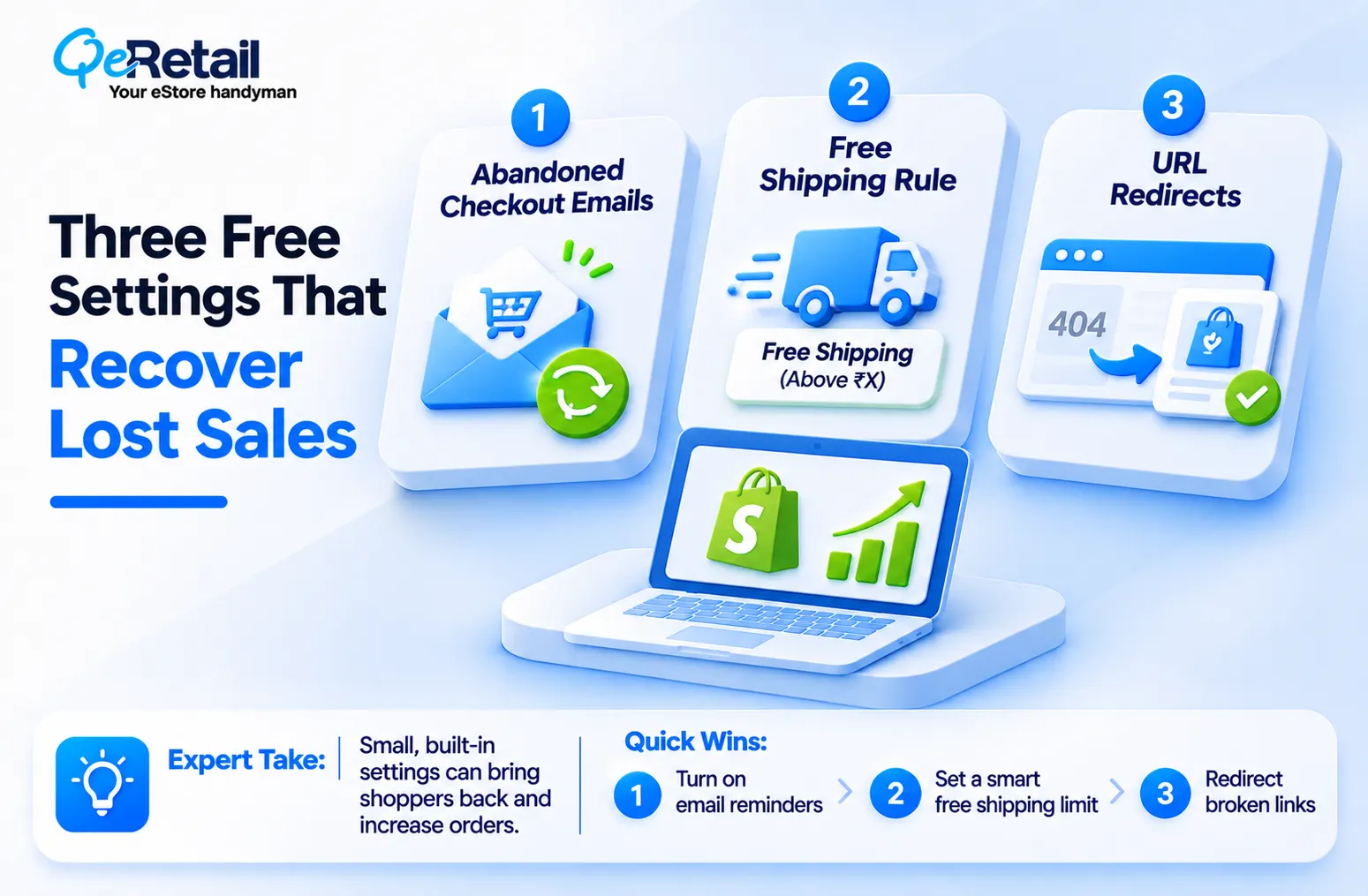
Setting 1: Abandoned Checkout Emails
When a shopper enters their email at checkout and then leaves, Shopify can send a reminder with a link back to their cart. In your admin, go to Apps, then Messaging, then Automations.
On the “Abandoned checkout emails by Shopify” automation, click the three dots, choose Edit settings, and select “Send abandoned checkout emails automatically.”
Then pick who receives it (Send to) and how long Shopify waits (Send after), and save. Click Customize email to add your logo and colors.
Know the limits before you count on it. Shopify’s help documentation lists cases where no email is sent, such as when the sale completes first, a payment error occurs, you do not ship to that address, or the shopper entered a phone number instead of an email.
Shopify also deletes abandoned checkouts after three months, so follow up while they are fresh. For the bigger picture on why shoppers leave, read our Shopify checkout optimization guide.
Expert Take:
Do not judge this setting by how many emails go out. Judge it by how many orders come back. Many shoppers who leave were simply interrupted, so start with a plain, friendly reminder. Change the wording only after you have a few weeks of results to compare.
Quick Wins:
- Turn on automatic sending and choose a delay of a few hours.
- Preview the email on your phone and fix anything that looks off.
- Check back in four weeks and count the orders that came from recovered checkouts.
Setting 2: A Free Shipping Rule
Surprise shipping costs make shoppers walk away. A free shipping rule above a set cart value gives them a goal to reach. Go to Settings, then Shipping and delivery, and open your shipping profile. Click Add rate, name it “Free shipping,” and set the price to 0.
Then click Add conditions, choose “Based on order price,” and enter your minimum. Pick a number a little above your average order value so shoppers need to add one more item.
Expert Take:
Check your numbers before you promise free shipping. If your threshold sits below your average order, you just gave away shipping on sales you already had. Set it above your average order, not at it, and confirm you still make a profit after paying for shipping.
Quick Wins:
- Find your average order value in Shopify Analytics.
- Work out your real shipping cost for an average order before you set the minimum.
- Compare average order value for four weeks before and after the change.
Setting 3: Redirects for Broken Links
When you delete a product or rename a page, the old link breaks. Shoppers and Google both land on a “page not found” message. In your admin, go to Content, then Menus, click View URL redirects, and choose Create URL redirect.
Enter the old address in “Redirect from” and the new one in “Redirect to,” then save. Some admins still see this under Online Store, then Navigation. Shopify only lets you redirect from addresses that show a 404 error, so a link that still loads a working page will not redirect.
For many links, use the Import option with a CSV file. Non-Plus stores can create up to 100,000 redirects.
Expert Take:
Never send every old link to your homepage. It confuses shoppers and gives no clear signal. Point each old product to its closest match, such as a similar product or its collection.
Quick Wins:
- List every product you deleted or renamed in the last year.
- Redirect each one to the closest matching product or collection.
- Test each redirect by pasting the old link into your browser.

Two Free Settings That Help Shoppers Find and Trust Your Store
These two settings help shoppers find what they want and feel safe paying you. Both cost nothing, and both work every hour of the day.
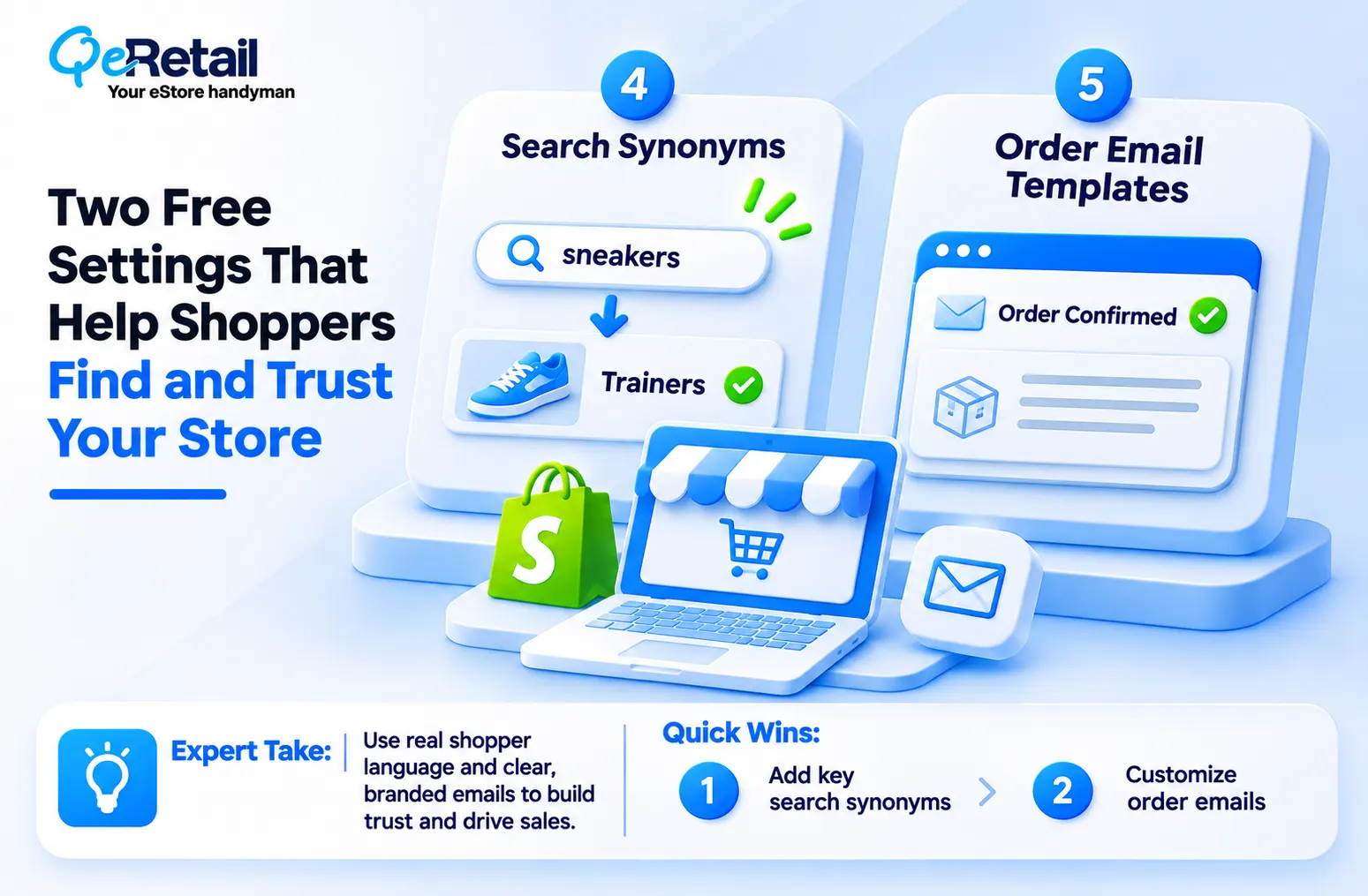
Setting 1: Search Synonyms
Your shopper types “sneakers.” You sell “trainers.” Search shows nothing, and they leave. Shopify’s free Search & Discovery app fixes this. It is an app rather than a built-in setting, but it is built by Shopify and costs nothing to install.
Open Search, then Synonyms, and click Create synonym group. Add words that mean the same thing. The app also reports searches that returned no results, so you can see the exact words you are missing. Every sale that starts in search is a sale you did not pay an ad for, which is the idea behind our guide to reducing Shopify customer acquisition cost.
Expert Take:
Shoppers do not use your product names. They use their own words. Start with the no-results list, not with a brainstorm. One hour reading what shoppers actually typed will teach you more than a week of guessing.
Quick Wins:
- Install the free Search & Discovery app.
- Open the no-results report and note the top ten searches.
- Create a synonym group for each one, then search your own store to test it.
Setting 2: Order Email Templates
After checkout, Shopify sends a plain confirmation email. That is your first message to a new customer. Go to Settings, then Notifications, then Customer notifications. Click Customize email template to change your logo, colors, and footer for every email at once.
To change the words in one email, open Order confirmation and click Edit code. You must confirm your sender email address first. Edit only the Email subject and the words in the Email body, and leave anything inside curly brackets alone, because those pull in the order details.
Use Preview and Send test email before you save. If something breaks, click Revert to and choose Previous or Default.
Expert Take:
Do not use this email to sell. Shoppers open it because they want to know the order went through. Calm their worries first: when it ships and how to reach you. If the code view feels risky, change only the branding and leave the body alone. A safe default beats a broken email.
Quick Wins:
- Add your logo and brand color in Customize email template.
- Rewrite the opening line of the order confirmation and send a test.
- Place a test order and read the real email on your phone.
Which Settings to Open First at Your Size?
You do not need all five this week. Match the order to where your store is today.
The Growth Starter ($100K to $200K): Start With Emails
You have steady visitors and little time. Do these first,
- Abandoned checkout emails: they turn missed sales into a free reminder.
- Redirects for broken links: they stop visitors from hitting dead ends after you remove products.
- Order confirmation email: it helps new buyers feel safe.
What can Shopify store owners do?
Block out one hour this week and finish these three.
The Scaling Operator ($200K to $400K): Fix Search and Shipping
More visitors means more people who cannot find things or balk at shipping. Add these next,
- Free shipping rule: it nudges shoppers to add one more item.
- Search synonyms: they help shoppers find products by their own words.
- Abandoned email review: check the wording and timing every quarter.
What can Shopify store owners do?
Read the no-results report and your average order value before you change anything.
The Enterprise-Ready Brand ($400K to $500K+): Check Everything Monthly
Your store has more products, more staff, and more old links. Settings drift when many people touch the store. Add a monthly check,
- Search report: read the no-results list and add new synonyms.
- Redirects: scan for new dead links after every catalog change.
- Emails: test the checkout reminder and order emails on a phone.
What can Shopify store owners do?
Give one person the monthly check as a standing job.
Stop Ignoring Settings. Start Owning Them.
Most stores think growth needs a new app or a bigger ad budget. It doesn’t. Free settings already sit in your admin, waiting for someone to open them.
If you installed a theme and called your store done, you didn’t set up a store; you just opened one. A few hours on these five settings stop you from leaking sales you already paid to attract.
QeRetail works with Shopify owners who want every part of the store doing its job.
Frequently Asked Questions
Are These Shopify Settings Really Free?
Do I Need a Developer for These Settings?
How Long Does the Full Setup Take?
Will These Settings Replace Paid Marketing Apps?
Table of Contents